


© Houghton Mifflin Harcourt Company. All rights reserved.
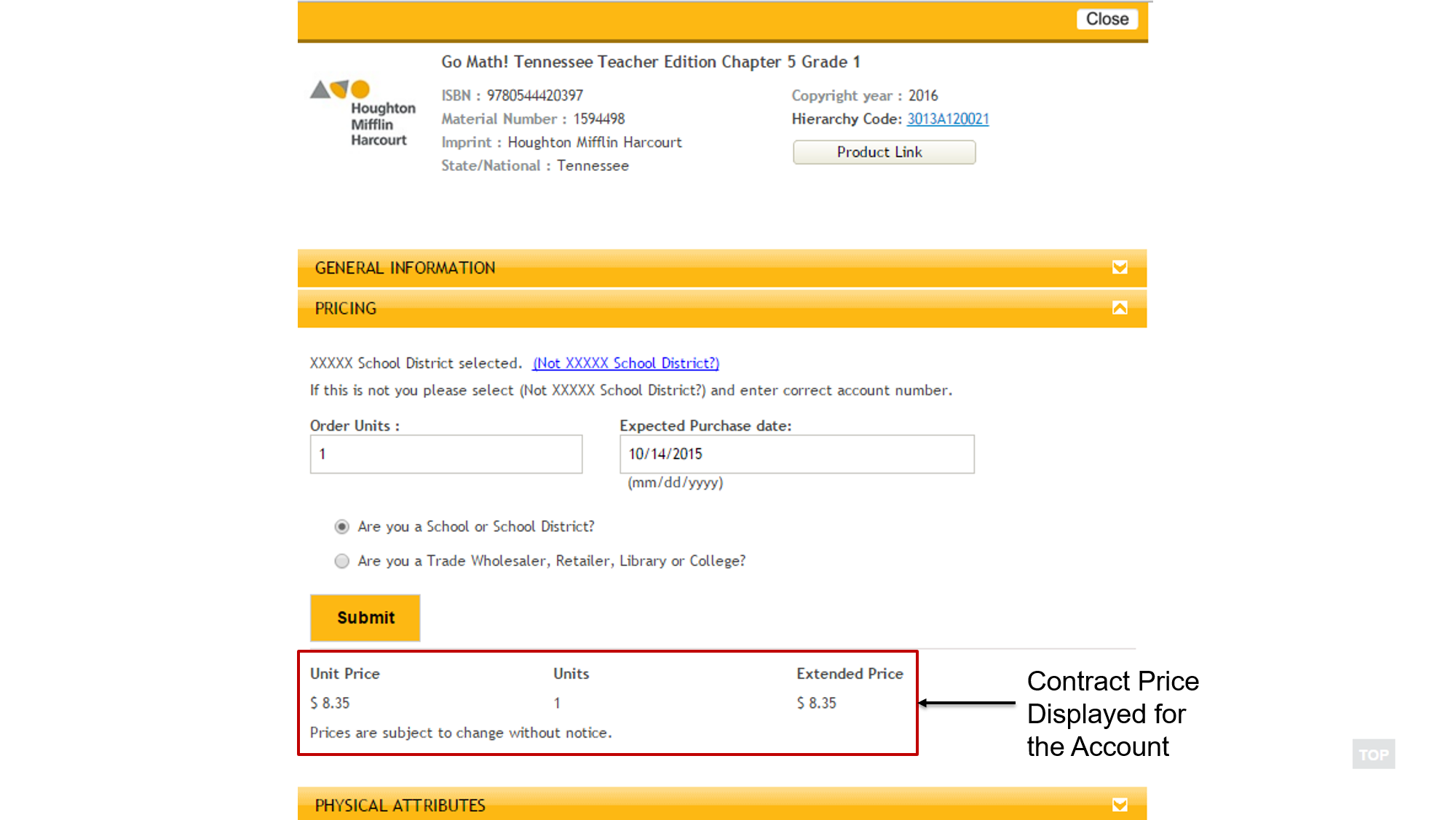
GW School selected.
(Not GW School)


Click to enlarge
Click to enlarge
Click to enlarge
Click to enlarge
Click to enlargeYou can create and submit a Shopping Cart using the Houghton Mifflin Harcourt Punchout web site. The Punchout application is accessible through a link from your Procurement system.
You can populate your shopping cart with one of these methods:
If you require any assistance while using Punchout, select the Contact Us link on the top right corner of the screen.
Follow these steps to create your Shopping Cart on the Houghton Mifflin Harcourt Punchout web site:
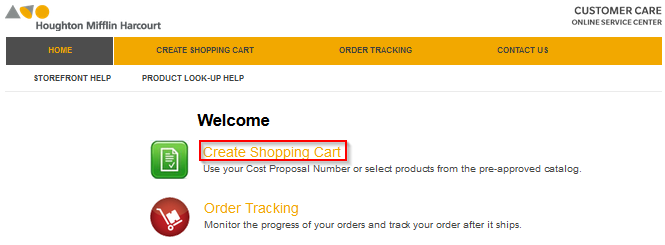
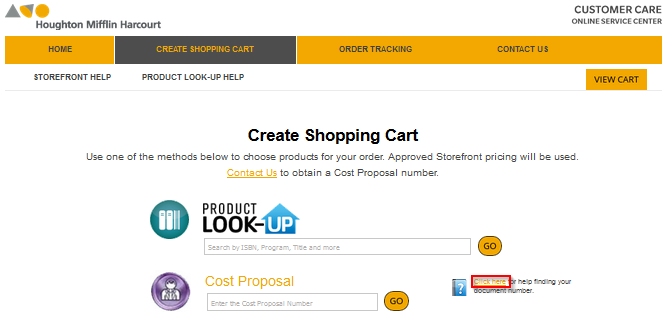
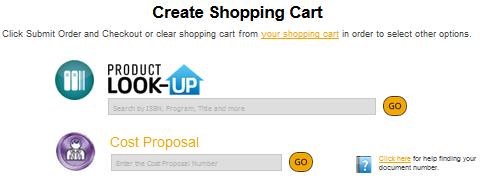
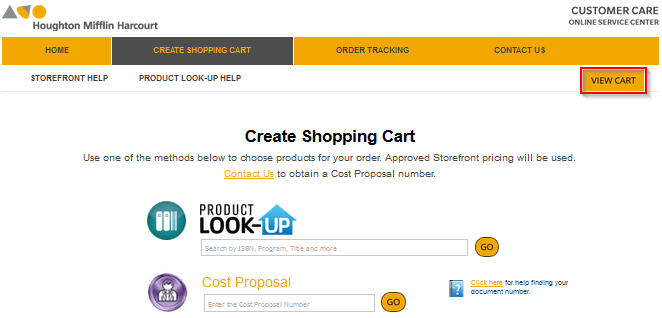
Step 1. On the Houghton Mifflin Harcourt Punchout home page, click the Create Shopping Cart link. The Create Shopping Cart page is displayed.
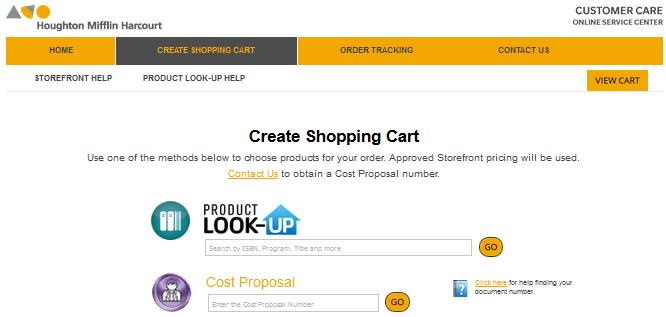
Step 2. Use one of the following methods to create your Shopping Cart:
You will need a Cost Proposal number to use this method to add product to your Shopping Cart. If you require a Cost Proposal select the Contact Us link on the top-right corner of the screen to view contact information.
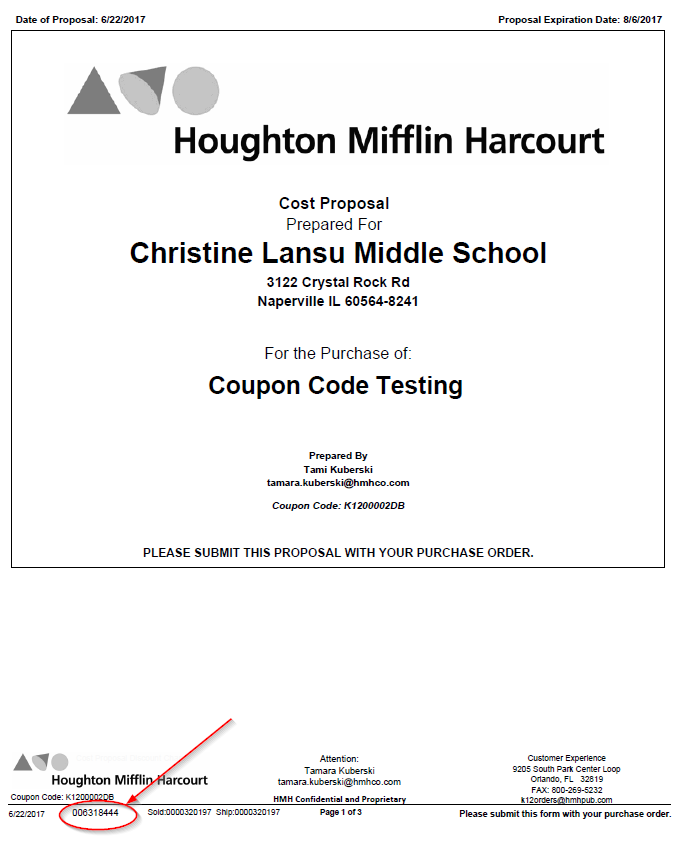
If you have a Cost Proposal document use the help to find your document number. Click the Click here link to access the help page.
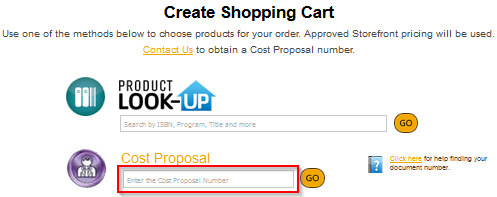
1. Enter the Cost Proposal number.
2. Click the
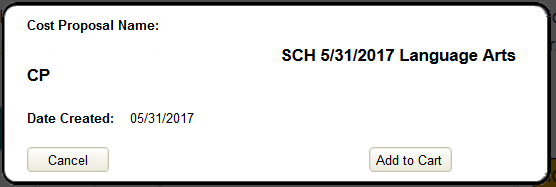
button. The Cost Proposal name is be displayed.
Note: If you receive an error message select the contact us link for assistance.
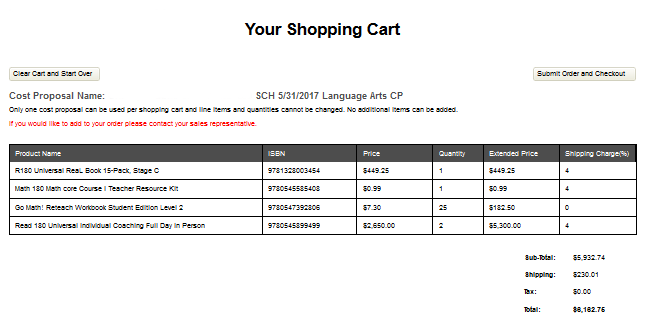
3. If you want to add the Cost Proposal to your Shopping Cart, click the Add to Cart button. Otherwise, click the Cancel button.
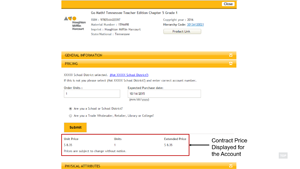
4. When you click the Add to Cart button, the Cost Proposal is added to your Shopping Cart.
Note: You may only add one Cost Proposal to your Shopping Cart and you cannot make any changes to the Cost Proposal once it is added to your Shopping Cart.
5. If you don't want to purchase the product in the Cost Proposal select the Clear Cart and Start Over button.
If you navigate back to the Create Shopping Cart page after adding a Cost Proposal to your Shopping Cart no options will be available.
You will need a Product List Order Form number to use this method to add product to your Shopping Cart. If you require a Product list Order Form select the Contact Us link on the top-right corner of the screen to view contact information.
1. Enter the Product List Order Form number.
2. Click the
button. The Product List Order Form name will be displayed.
Note: If you receive an error message select the contact us link for assistance.
3. If you want to add the Product List Order Form to your Shopping Cart, click the Add to Cart button. Otherwise, click the Cancel button.
4. When you click the Add to Cart button, the Product List Order Form is added to Your Shopping Cart.
Note: If you use the Product List Order Form method, you can use only one Product List Order Form and cannot add any additional product to your shopping cart. If you don't want to purchase the product in the Product List Order Form select the Clear Cart and Start Over button.
You can use these methods to add products to your Shopping Cart:
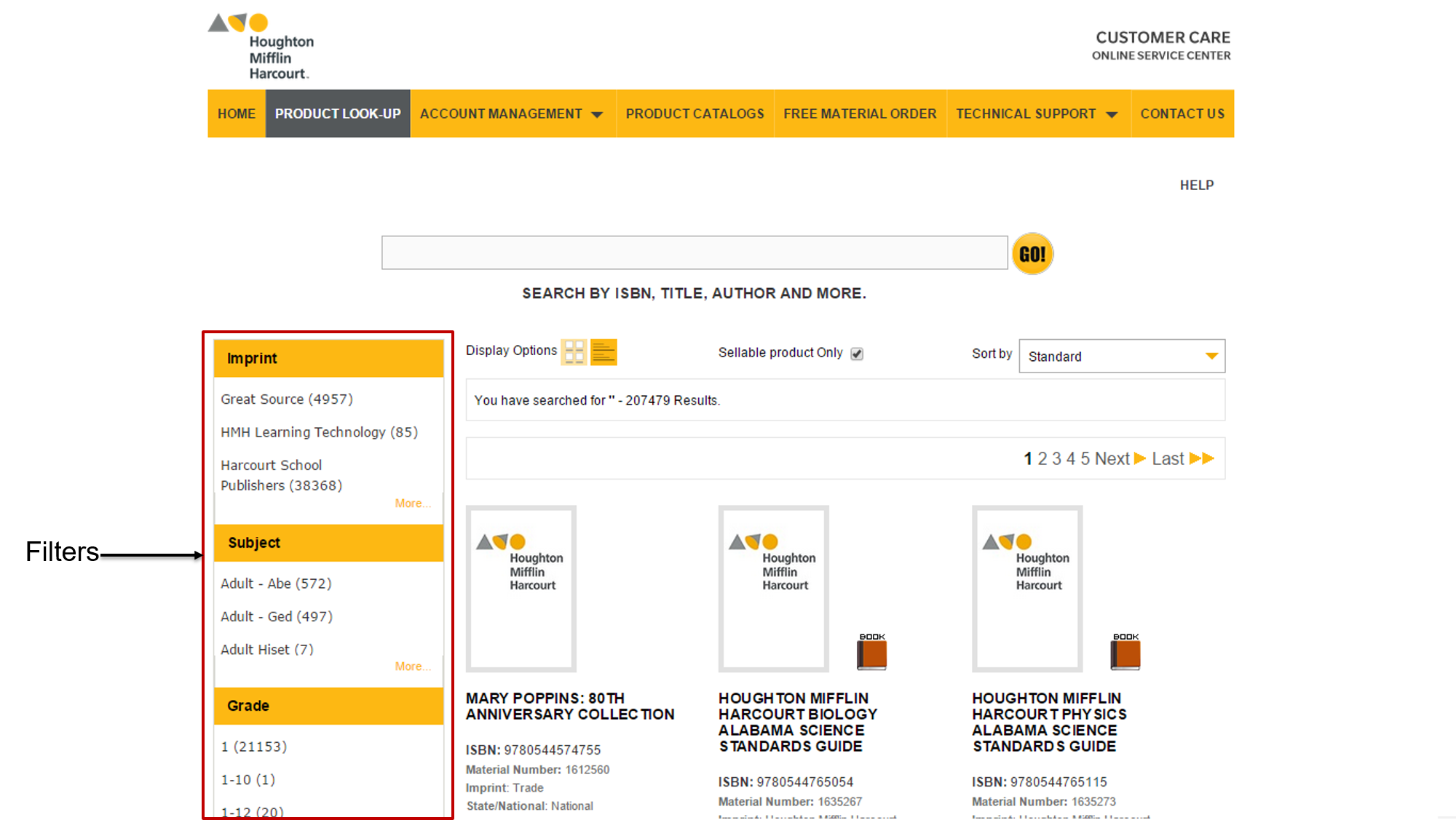
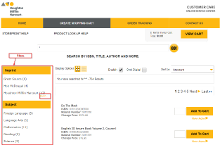
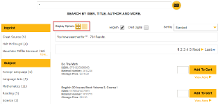
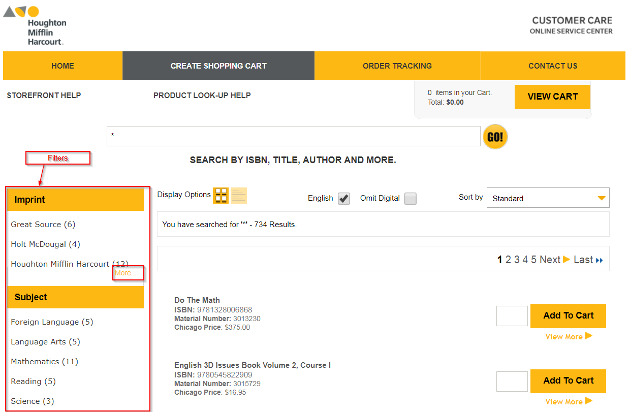
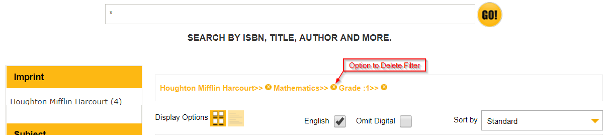
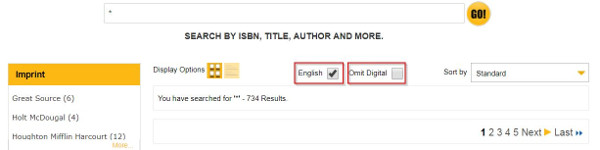
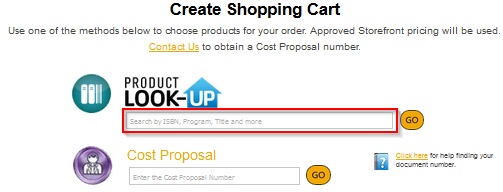
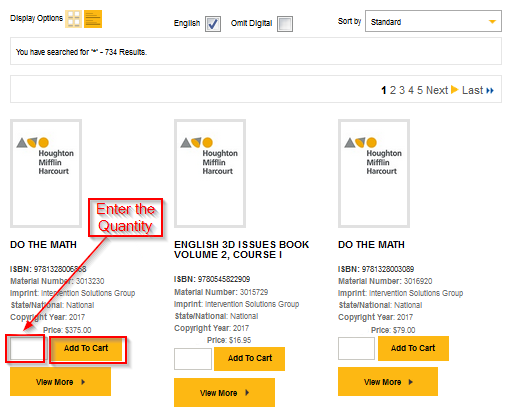
1. Enter a search word in the PRODUCT LOOK-UP field.
2. Click the
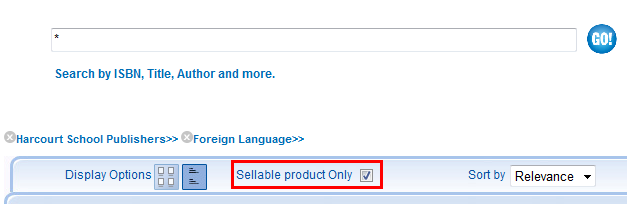
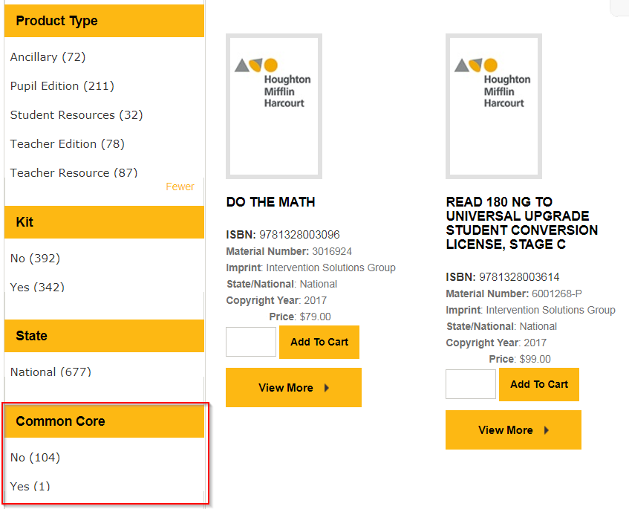
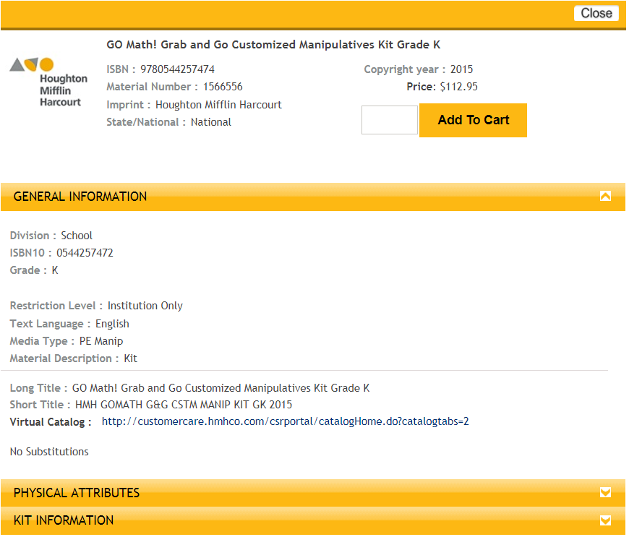
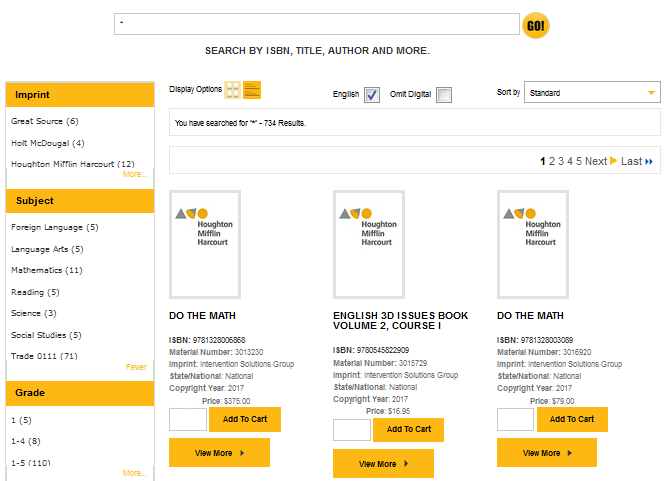
button. The PRODUCT LOOK-UP page is displayed.
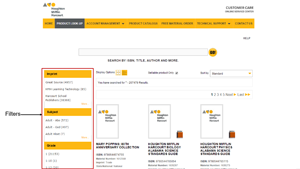
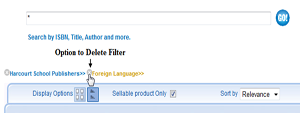
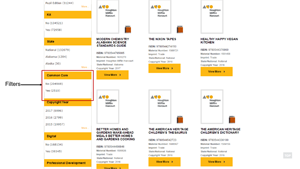
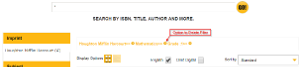
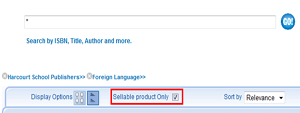
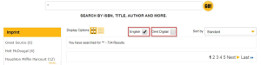
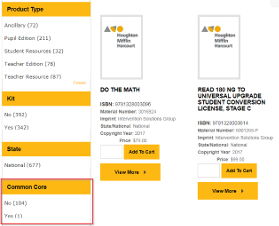
3. Use the Select PRODUCT LOOK_UP HELP for assistance with using searching the products for your Shopping Cart.
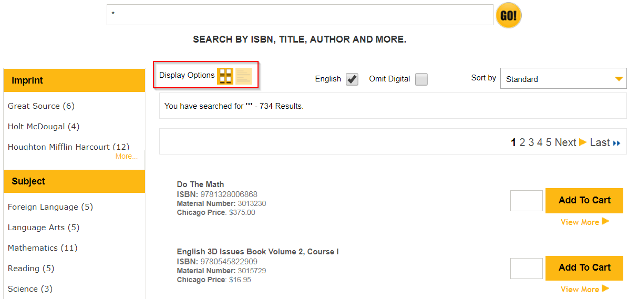
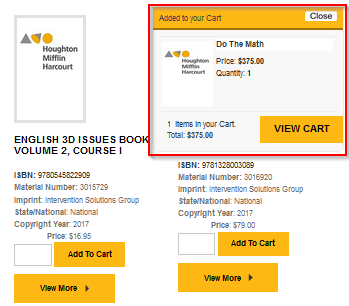
4. Enter the Quantity and click the Add to Cart button
A pop-up box shows you the number of items added to the cart and the total price of the selected products.
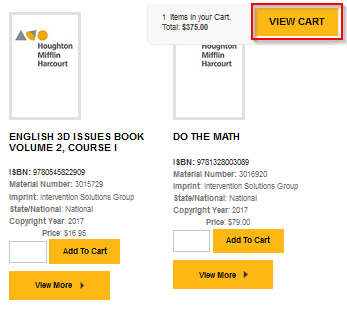
5. After adding the product, click the View Cart button.
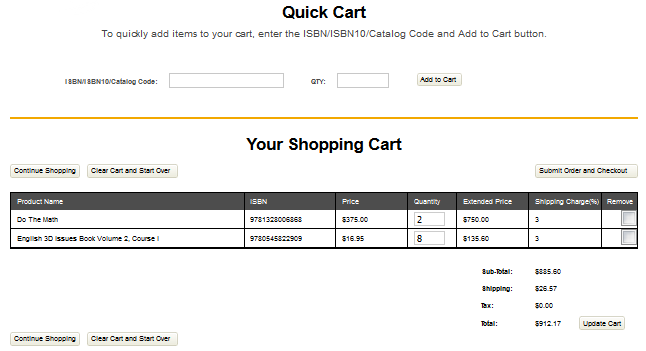
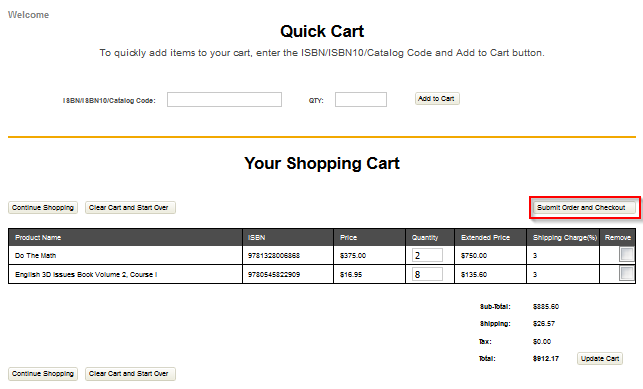
6. Your Shopping Cart page is displayed with the products.
You can modify the quantity in the Cart and delete products by selecting the check box in the Remove column.
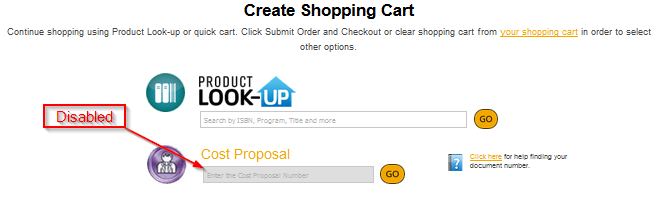
Note: When you use PRODUCT LOOK-UP to create your Shopping Cart, the remaining two options are disabled. In order to use the other options, either complete creating your Shopping Cart order or clear the Cart and start creating your Shopping Cart.
If you know the ISBN or Catalog code for the products, then you can add the products directly to the Shopping Cart using the Quick Cart feature.
1. Click the View Cart button from the Create Shopping Cart or PRODUCT LOOK-UP page to access the Quick Cart feature.
The Quick Cart page is displayed.
2. Enter the ISBN, ISBN10, or Catalog Code and Quantity and click the Add to Cart button.
The product is added to your Shopping Cart.
After adding products to your Shopping Cart, click the Create Shopping Cart Order button to submit the Shopping Cart to your procurement system.
Note: Houghton Mifflin Harcourt will not be able to provide order status information until approved and submitted from your procurement system.
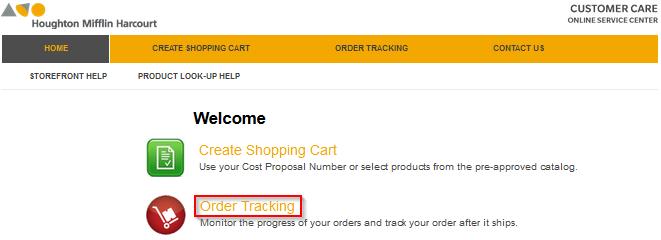
Monitor the progress of your orders and track your order after it ships.
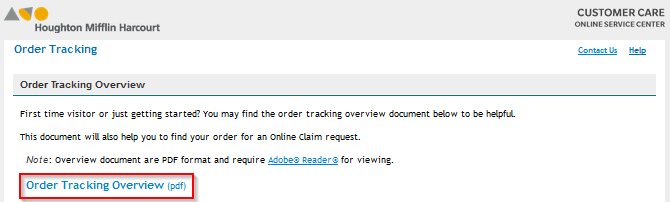
Click the Order Tracking link to access the Order Tracking webpage.
Note: Houghton Mifflin Harcourt will not be able to provide order status information until approved and submitted from your procurement system.
To get help on how to use order tracking, click the Help link.
Click the Contact Us link if you have questions or need assistance placing your Punchout order.